

Description
Paste a video URL. Publish. Done.
Write without stopping to configure media. Paste a YouTube (including Shorts) or Vimeo URL into a post or page, and MisticEase turns it into a clickable thumbnail on the published page. Clicking the thumbnail opens the video in a popup. No shortcodes or embed code required.
Customize as you write. Add a few characters before a video or image URL to control how it appears, right in your text. No need to set up a separate block for each item. See the Slash Markup section below.
What MisticEase does
- Video popups you can move. On larger screens, visitors can drag a popup to another part of the page and continue watching while they read.
- Customize individual items. Change how individual items appear, such as displaying video titles as text links. See below for details.
- Thumbnail caching. Retrieved thumbnails are saved and then served from your own site.
- Editor compatibility. Works with both the Block Editor and Classic Editor.
- Multisite support. Network administrators can manage thumbnail cache limits and CDN hostname settings across sites.
- Image popups and galleries. Easily group images into separate galleries.
When you drag an image popup into floating mode and pin it, you can open an image from another gallery group, keeping up to two images open at the same time.
Try the live demo to use the popups yourself.
Thumbnail caching to reduce performance overhead
- First view. MisticEase retrieves and saves video thumbnails in the WordPress uploads directory.
A temporary lower-quality image or placeholder may appear while a high-quality thumbnail is being saved. - Served from your own site. Once saved, thumbnails are served from your site.
This avoids repeatedly retrieving the same thumbnails and helps reduce performance overhead. - Thumbnail lazy loading. Enabled by default for thumbnails displayed by MisticEase.
- Cache management. Configurable cache limits and automatic cleanup prevent unused thumbnails from accumulating indefinitely.
Customize media as you write with Slash Markup
Just a few characters before a URL. That’s all it takes.
- Video title:
n/URL— Show the video title as a text link that opens the popup. - Your own label:
/Label/URL— Show your own text as a popup link. - Thumbnail width:
t300/URL— Set the thumbnail width to 300 px. - Popup width:
p980/URL— Set the popup width to 980 px. -
Image gallery groups:
g1/t300/IMAGE_URL— Choose which images on the page belong together.
Previous/next navigation stays within the same numbered group. To keep a single image separate, assign it a group number not used by any other image on the page.
Default: Images withoutgN/, or withg0/, belong to group 0.
Combining options: UsegN/with other Slash Markup options in any order. However,np/specifies no popup. When used together, the image appears inline without a popup and does not participate in any gallery group. -
Other options: For detailed explanations of these and other options, see the documentation in the MisticEase settings panel.
Combine settings: t300/p980/URL — A 300 px thumbnail and a 980 px popup. Both remain responsive to the available space.
Writing within a sentence?
Use n/URL to display a video title as a popup link, or /Label/URL to create an image popup link with your own label.
Leave a space before the markup and after the URL when followed by text.
If punctuation follows immediately, add /// to mark the end of the URL.
If an HTML tag follows the URL directly, /// is not needed.
Examples:
- Video:
Watch n/https://youtu.be/XXXXXXXXXXX///. - Image:
See /Photo/https://example.com/wp-content/uploads/2026/10/photo.jpg///.
More to explore: These are just a few easy-to-remember options. Find the full instructions in the Readme tab of the MisticEase settings panel, or see the results on the live demo page.
Questions or feature requests? Feel free to post in the WordPress.org support forum or leave feedback in a review.
External services
MisticEase connects to YouTube and Vimeo to retrieve video thumbnails and titles, and when visitors click to play videos.
Terms and privacy policies:
- YouTube Terms: https://www.youtube.com/t/terms
- Google Privacy Policy: https://policies.google.com/privacy
- Vimeo Terms of Service: https://vimeo.com/legal
- Vimeo Privacy Policy: https://vimeo.com/privacy
Freemius
- MisticEase uses the Freemius SDK for MisticEase Arc upgrades, trials, and purchases, and to prevent both plugins from being active simultaneously.
- If you choose to opt in, your WordPress account, site, and environment information is sent to Freemius. We may refer to aggregated statistics about user environments to improve the product and provide support.
- Opting in is optional. All MisticEase features work without opting in.
Privacy Policy: https://freemius.com/privacy/
Screenshots
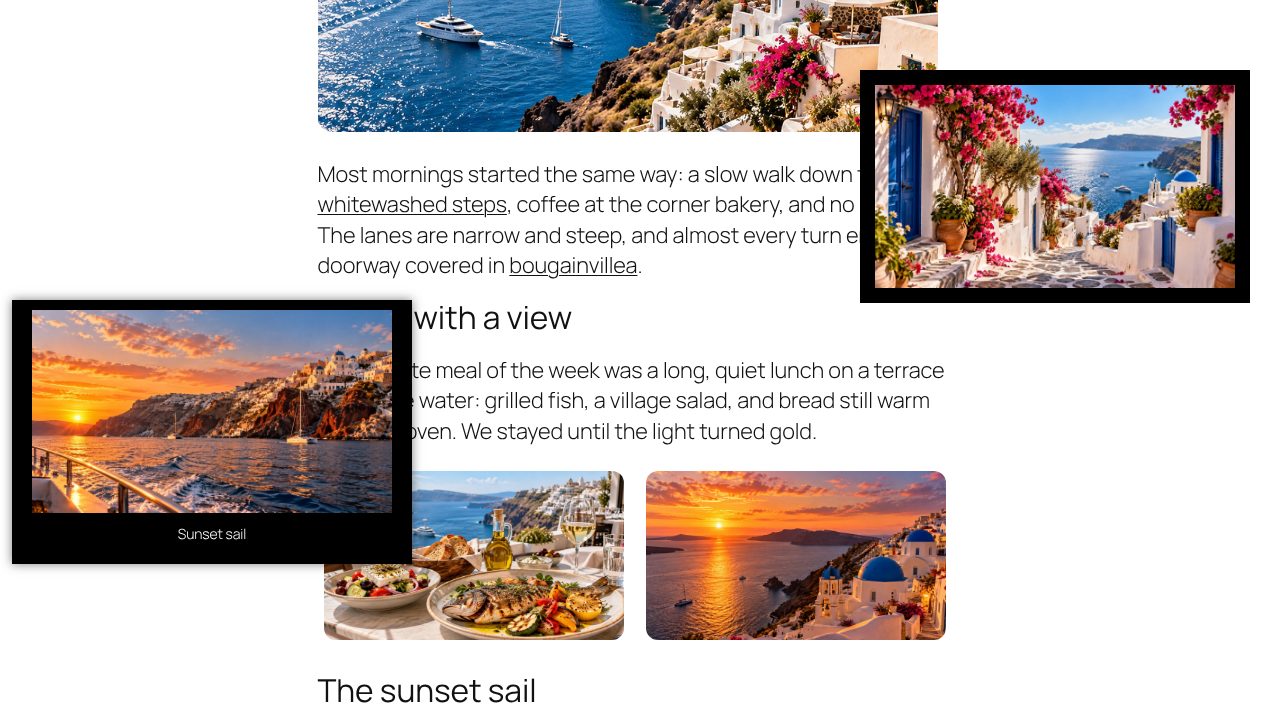
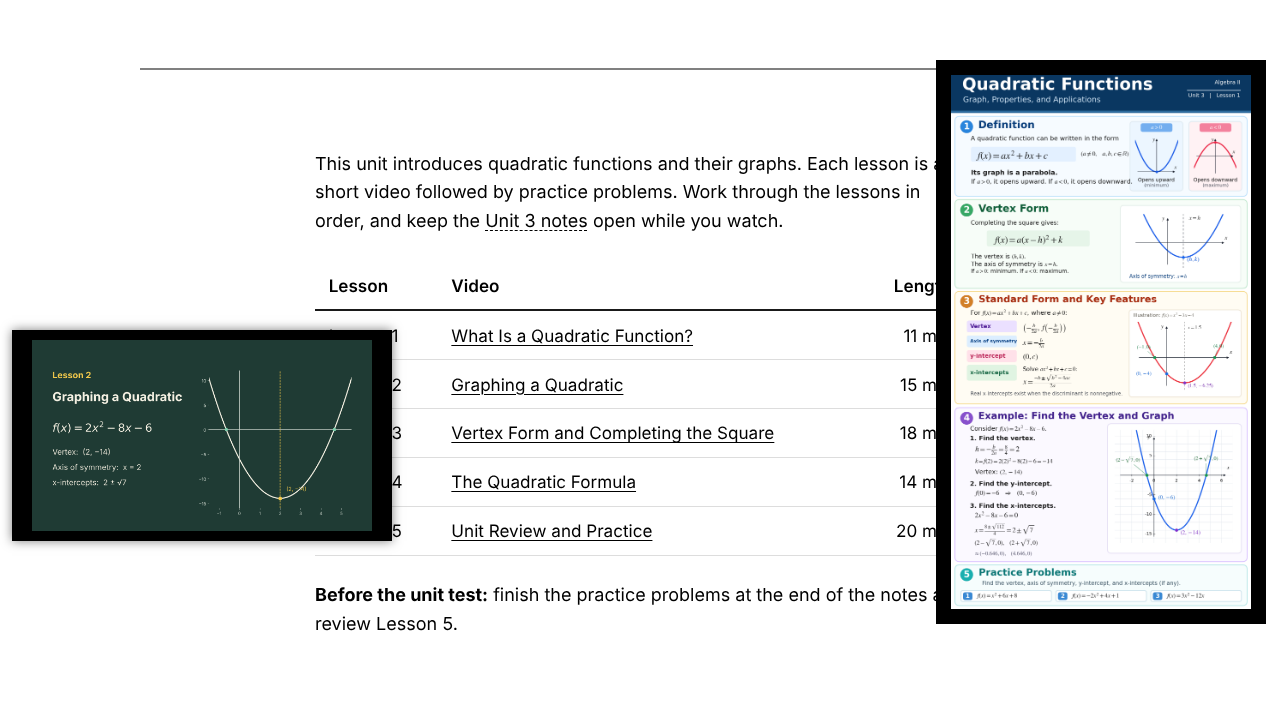
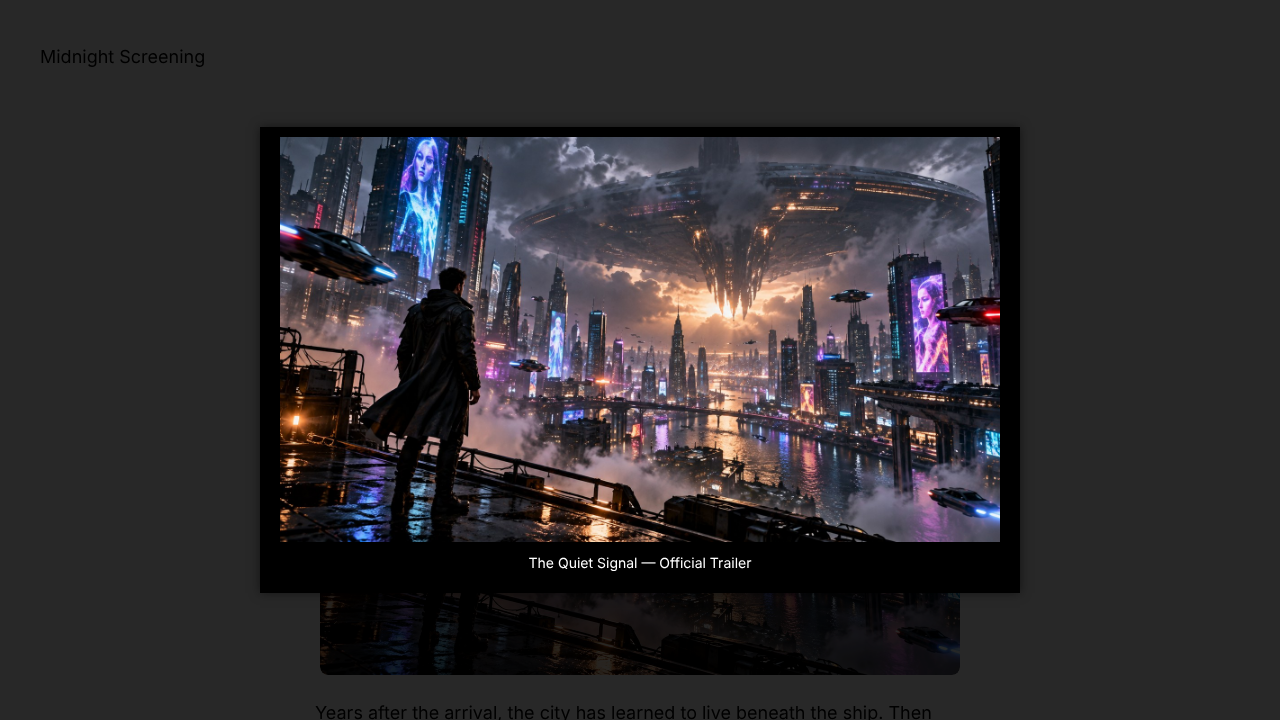
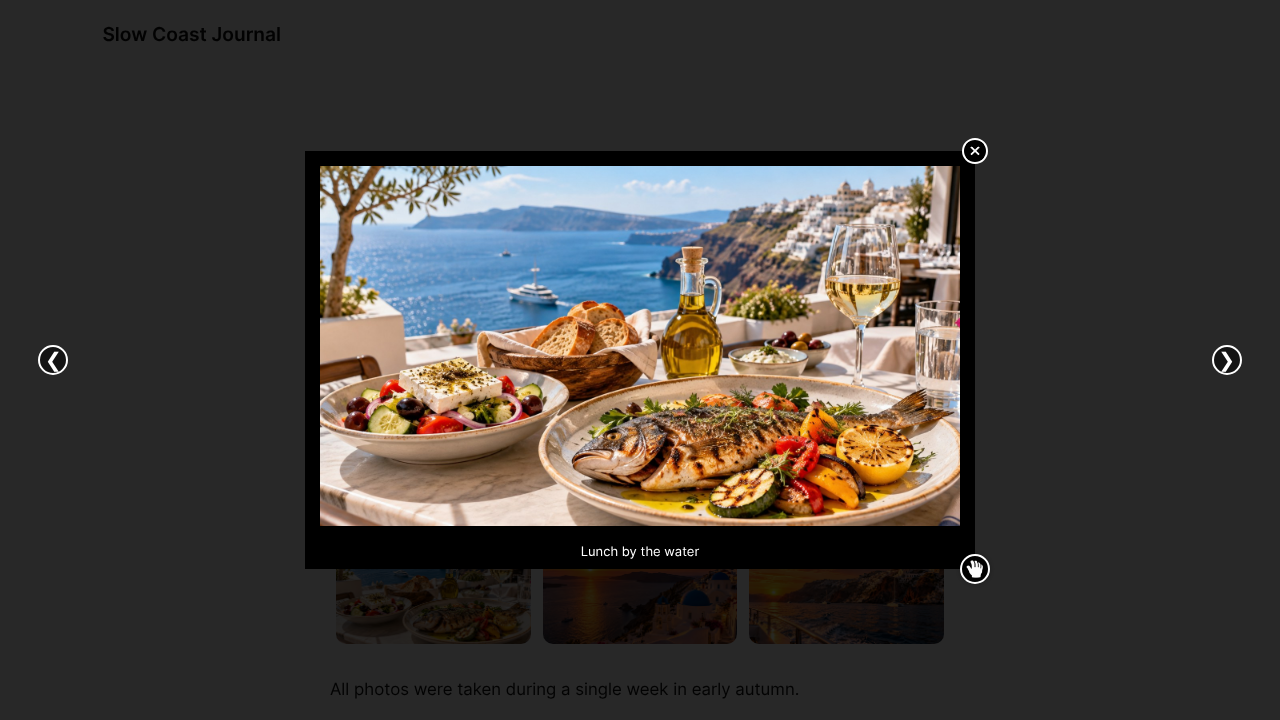

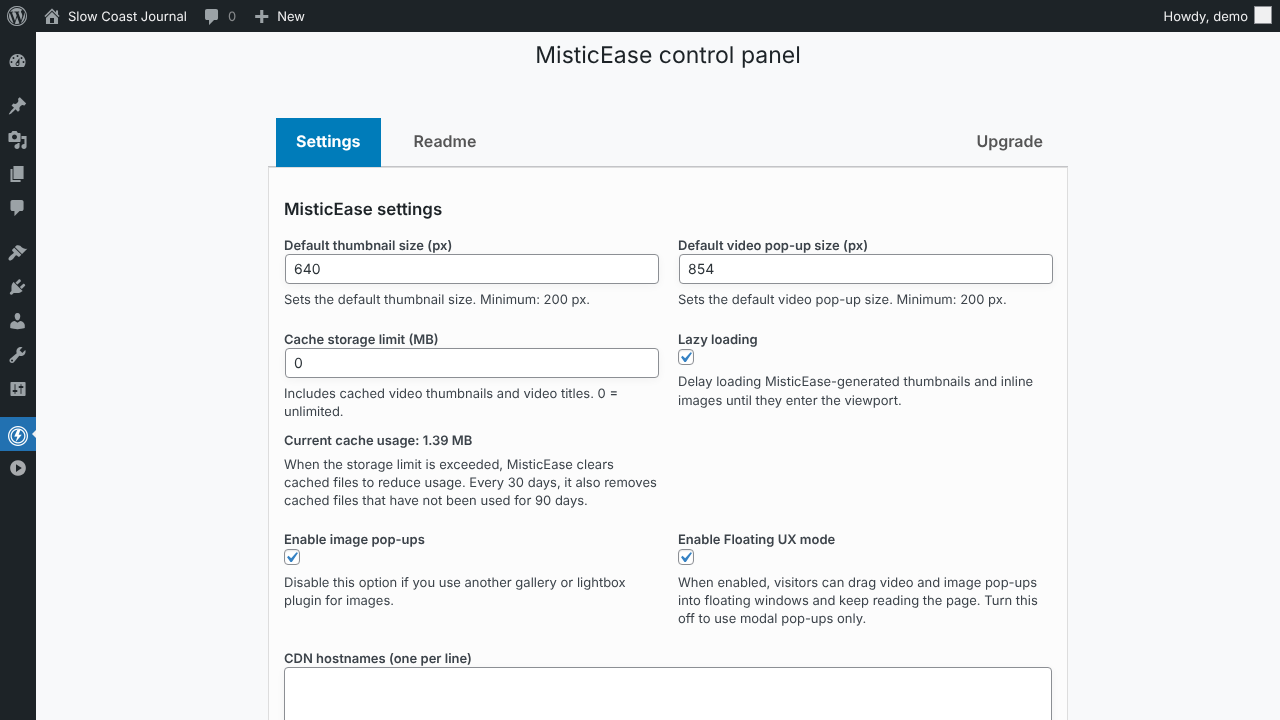
Installation
- Install and activate MisticEase from the WordPress Plugins screen.
- Paste a supported video URL into a post or page and publish.
FAQ
-
Do I need to write shortcodes or embed code?
-
No. Paste a supported video URL and publish. Both the Block Editor and Classic Editor are supported.
-
Can I move popups on a phone?
-
At window widths of 640 px or less, videos open in a normal popup. Floating mode is available on larger screens.
-
Does MisticEase create separate cached thumbnail files for different display widths?
-
MisticEase keeps cached thumbnails at their standard size instead of generating separate files for each display width. Their displayed size adjusts responsively to the specified width or available space. This prevents unnecessary growth of the thumbnail cache folder.
-
Are thumbnails and popups fully responsive?
-
Yes. With or without a specified width, both thumbnails and popups fit within the available space.
-
Where can I find the full instructions?
-
Open the Readme tab in the MisticEase settings panel after installation.
Reviews
There are no reviews for this plugin.
Contributors & Developers
“MisticEase – Floating Video & Image Popups” is open source software. The following people have contributed to this plugin.
Contributors
Translate “MisticEase – Floating Video & Image Popups” into your language.
Interested in development?
Browse the code, check out the SVN repository, or subscribe to the development log by RSS.
Changelog
1.3.8
- Added
gN/Slash Markup for independent image gallery groups, withg0/as the default group. - Floating UX now supports one video and up to two images from different gallery groups at once, with Pin available for all three windows.
- Updated image URL handling to remove Slash Markup when image pop-ups are disabled, without altering existing links or video handling.
- Minor adjustments.
1.3.7
- Fixed image label handling in the Block Editor.
- Removed Dailymotion embedding support after changes to its player requirements.
Older changelog entries are in changelog-misticease.txt.