

Description
Faultline turns your WordPress error log into answers: what broke, which plugin or theme caused it, and what to do next.
If you have ever turned on WP_DEBUG, found an error in the log, and had no idea which plugin caused it or what to do about it, this plugin is for you.
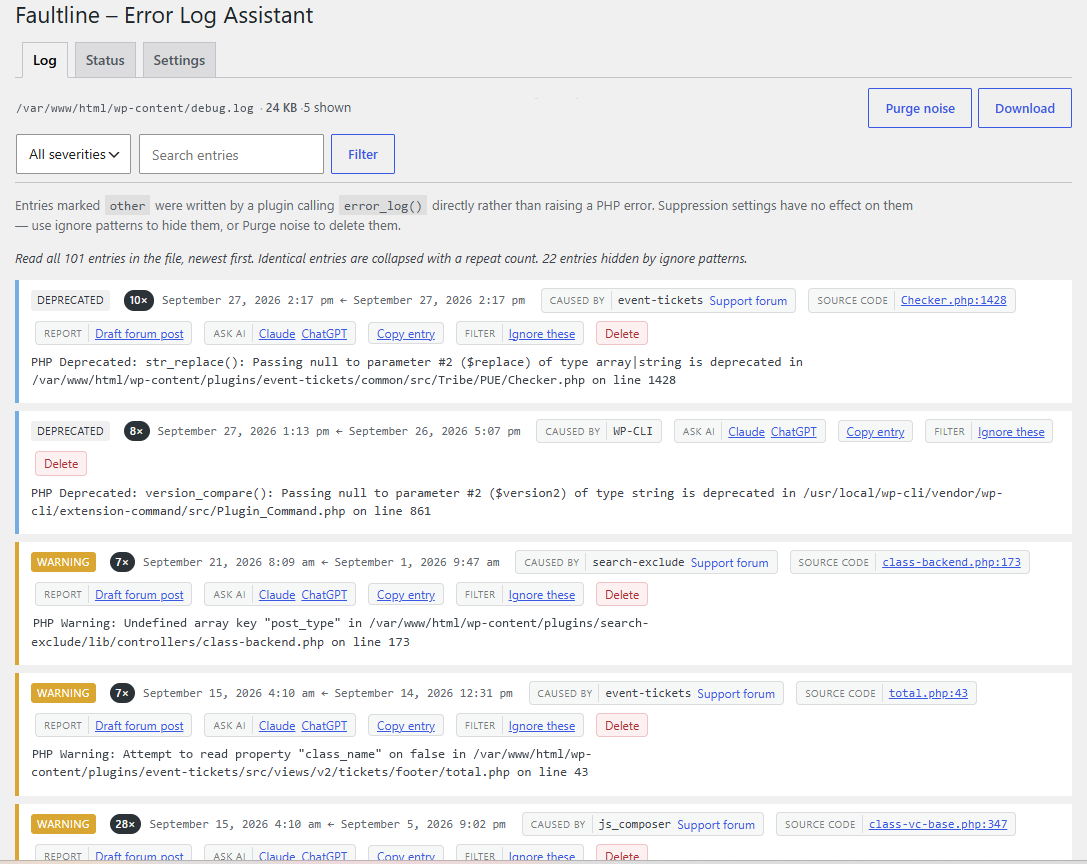
Find the cause
- Caused by – every error is matched to the plugin or theme behind it, with a link to that plugin’s WordPress.org support forum.
- Source code – open the file at the exact line that failed, highlighted.
- Draft forum post – a ready-to-post support request with the error and your site details filled in, and private details removed.
- Ask AI – open a copy of the error, private details removed, in Claude, ChatGPT or Perplexity. See “External services” below.
Know when something breaks
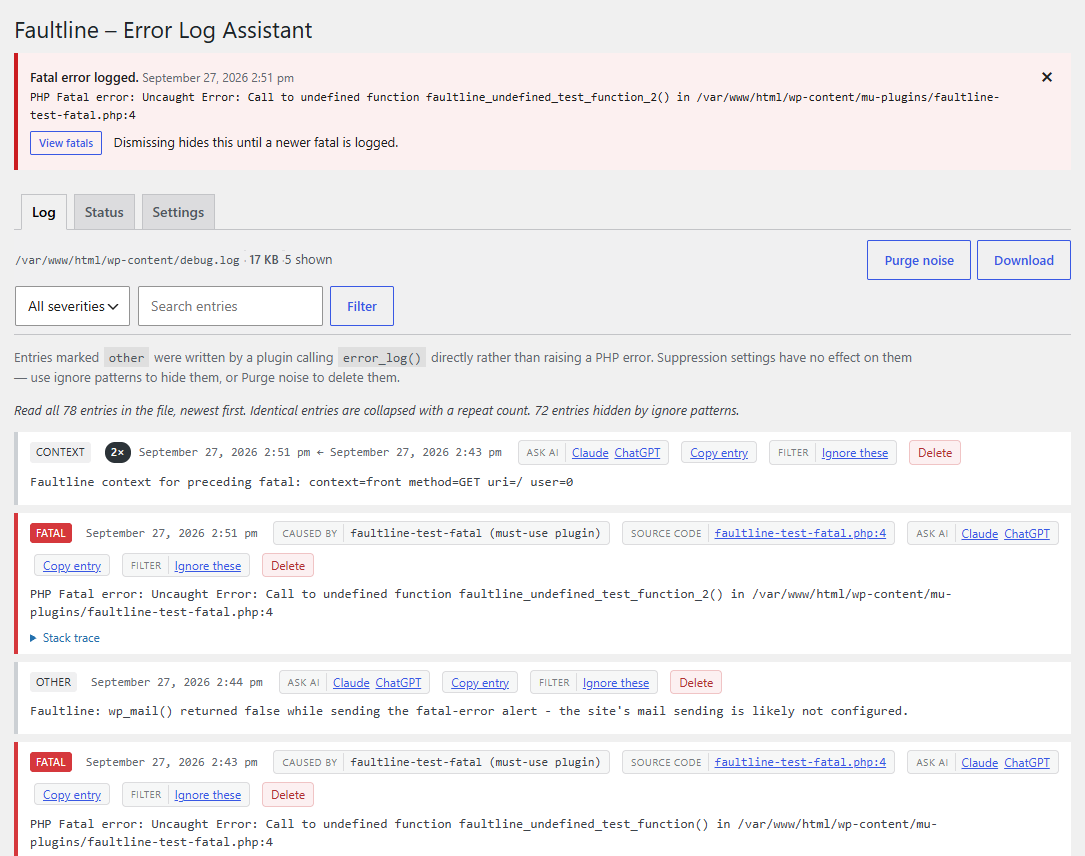
- Fatal error alerts – a banner in your dashboard, an email, or both, as soon as a fatal error happens. The alert says where it happened: the front end, the admin, a scheduled task, WP-CLI or an AJAX call, and on which page.
- Public access check – debug.log often sits where anyone can download it, and it contains server paths and plugin details. Faultline tests this the way a stranger would. If your log is exposed, one click moves it to a private file name that bots cannot guess, keeping every entry, and you get the blocking rule for your web server (Apache, LiteSpeed, nginx or IIS).
Keep the log readable
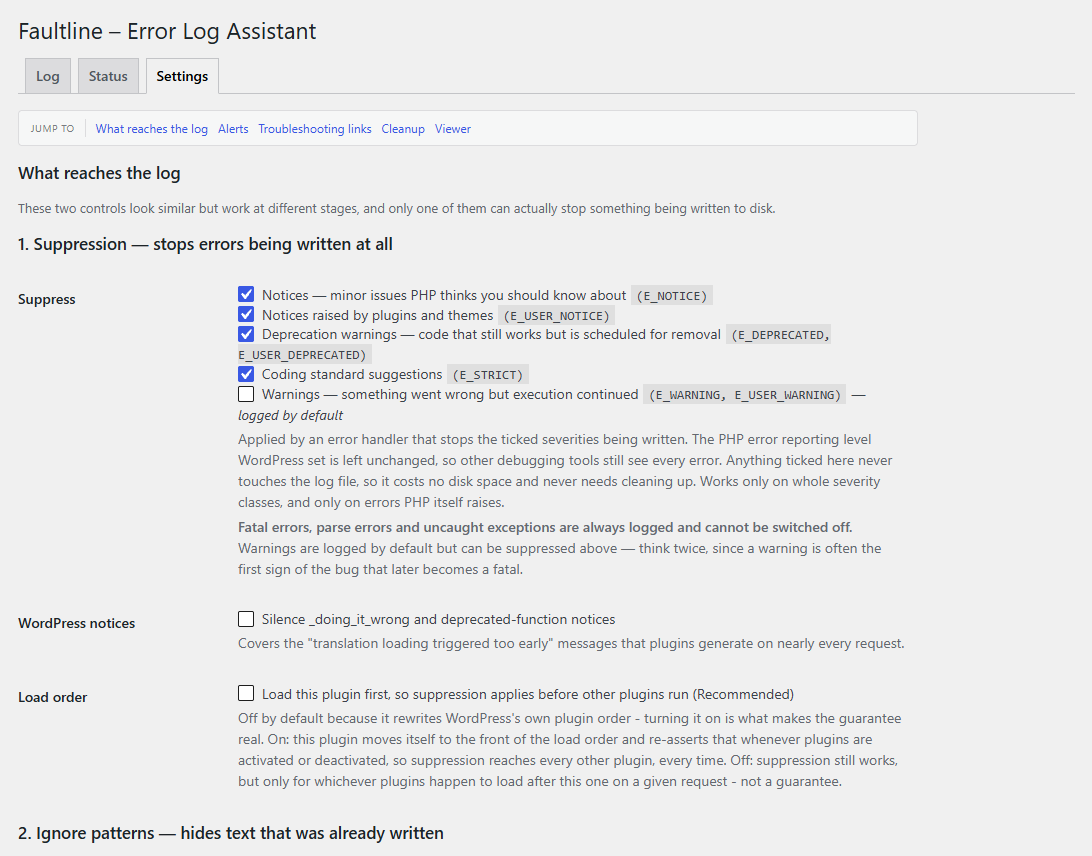
- Stop routine messages being written – notices, deprecation warnings and coding-standard suggestions never reach the log, so there is nothing to clean up later. Other debugging tools still see every error. An optional setting loads Faultline before your other plugins, so the notices they raise while starting up are caught too.
- Ignore patterns – hide one chatty message without hiding its whole category. A live preview shows what will match before you save.
- Automatic cleanup – remove noise, delete old entries and cap the file size, so a runaway error never fills your disk.
- Fatal errors are always logged. They cannot be switched off.
Private details stay private
Ask AI links and forum drafts replace server paths, your domain, the database table prefix, email addresses and IP addresses with placeholders before the text leaves your browser. Nothing is sent automatically: you always see the text first.
Guided setup
Setup takes a few minutes, one short screen at a time:
- Previous logs – finds PHP error logs your site was already writing (such as
error_logorphp_error.log) and copies their recent entries into the new log. The original files are only read, never changed. - Turn on logging – WordPress needs three settings in
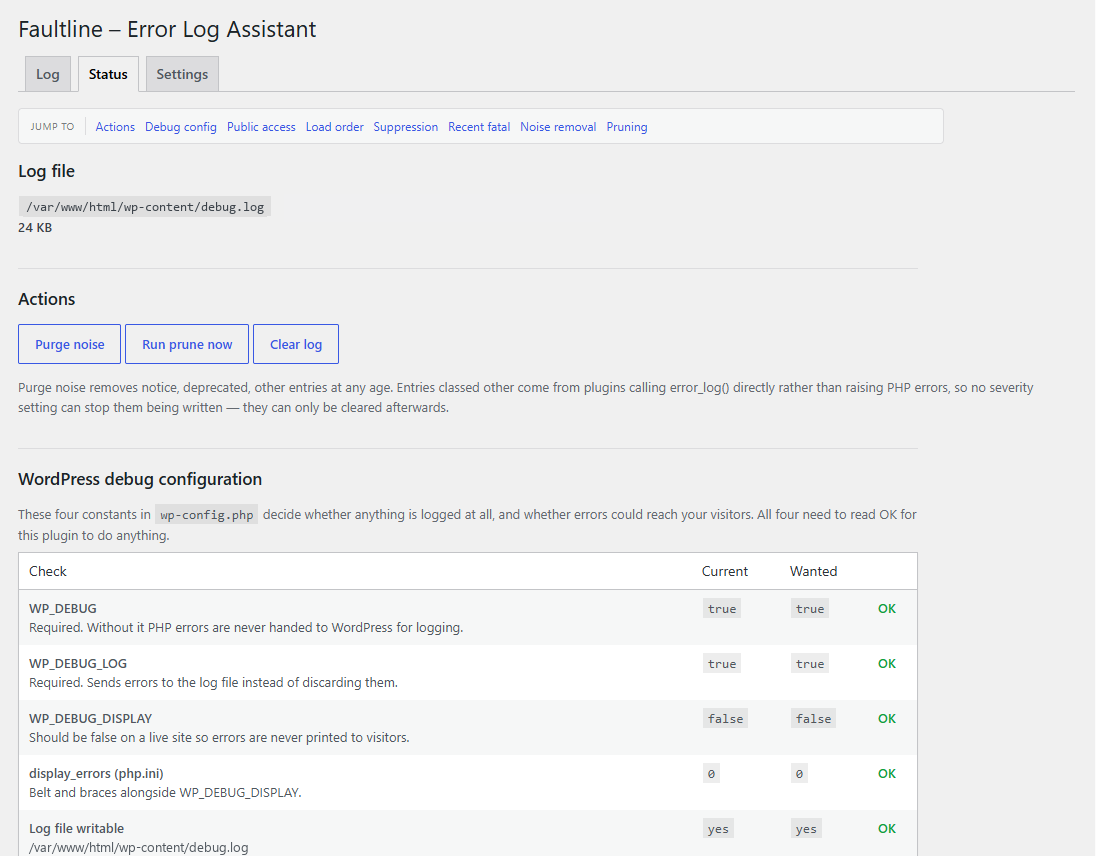
wp-config.php(WP_DEBUG,WP_DEBUG_LOGandWP_DEBUG_DISPLAY) to log errors without showing them to visitors. Setup checks all three and can make the change for you, with a backup first and a one-click restore. - Reduce noise and Alerts – sensible defaults, already selected.
- Done – confirms that logging works and that your log cannot be downloaded from the web.
Nothing is removed from an existing log until you finish or skip setup. You can run it again from the Status tab.
What Faultline will never do
- Write to
.htaccess. One bad rule there can take the whole site down, so you get the rule to add yourself. - Change
wp-config.phpwithout asking. It adds the lines that are missing. It changes an existing line in only two cases, each confirmed by you: correcting a single wrongtrue/falsevalue, and giving the log a private file name. If a setting is defined more than once, it explains the problem instead of guessing. A backup is taken before every change. - Hide a fatal error. Fatal errors, parse errors and uncaught exceptions are always logged.
External services
Faultline can show “Ask AI” links next to each log entry. Links to Claude and ChatGPT are shown by default. Choose which links appear, or turn them all off, under Settings > Troubleshooting links.
When you click one of these links, your browser opens that service’s website in a new tab, with a copy of the log entry in the page’s URL. Faultline itself sends nothing to these services. There is no server-side request, and nothing is sent until you click a link. Before the link is built, your browser removes server paths, your domain, the table prefix, email addresses and IP addresses from the entry. This is a best-effort pattern match and cannot catch every sensitive detail, such as an order ID or a customer name inside an error message.
The services these links can point to:
- Claude (Anthropic) – Terms of Service, Privacy Policy
- ChatGPT (OpenAI) – Terms of Use, Privacy Policy
- Perplexity – Terms of Service, Privacy Policy
No service is contacted unless you click its link.
Screenshots

Installation
- In your WordPress admin, go to Plugins > Add New Plugin, search for “Faultline” and install it. Or upload the
faultline-error-log-assistantfolder to/wp-content/plugins/. - Activate the plugin on the Plugins screen.
- Go to Tools > Faultline and follow Setup. It copies any previous PHP error logs, turns on logging (it can edit
wp-config.phpfor you, with a backup) and checks that the log cannot be downloaded from the web. - After Setup, the same menu item opens the Log tab. Setup can be run again from the Status tab.
FAQ
-
How do I view my WordPress error log?
-
Activate Faultline and go to Tools > Faultline. If logging is off, Setup turns it on for you. The Log tab then shows every entry with its severity, the plugin or theme that caused it, and a link to the source code.
-
Which plugin is causing this PHP error?
-
Each entry on the Log tab has a “Caused by” label naming the plugin or theme, with a link to that plugin’s WordPress.org support forum. “Draft forum post” writes a support request with the error and your site details filled in.
-
How do I turn on WP_DEBUG safely?
-
Use Setup. Three settings have to be right together:
WP_DEBUG,WP_DEBUG_LOGandWP_DEBUG_DISPLAY. Get one wrong and either nothing is logged or PHP errors are shown to your visitors. Faultline checks all three and can write the correct lines towp-config.phpfor you, with a backup first, or give you the lines to paste in yourself. -
How do I stop WordPress from filling up debug.log with notices?
-
Under Settings, tick the types to suppress: notices, deprecation warnings, coding-standard suggestions and, if you choose, warnings. Suppressed messages are never written, so there is nothing to clean up.
-
Is my debug.log file publicly accessible to anyone on the internet?
-
It may be. debug.log usually sits in a folder your web server serves, and it contains server paths and stack traces. Faultline requests your log over the web the way a stranger would and tells you whether it could be read. Setup runs this check at the end, and you can repeat it on the Status tab.
If the log can be read, a warning shows on every admin screen until it is fixed. There are two fixes: move the log to a private file name that bots cannot guess (one click, works on any server, keeps every entry), or add a blocking rule for Apache, LiteSpeed, nginx or IIS. On nginx only your host can usually add the rule, so Faultline writes the message to send them.
-
I used to have a PHP error log from my host. Will I lose it?
-
No. Setup looks for the PHP error logs your site was writing before, such as the
error_logfiles hosting control panels create, and offers to copy their recent entries into the new log. The original files are only read, never edited, moved or deleted. Automatic cleanup also waits until you finish or skip Setup. -
Does this replace my existing log viewer plugin?
-
It can. Faultline shows every log entry with its severity, the plugin or theme that caused it and the source code, alerts you to fatal errors, and keeps routine notices out of
debug.log. -
What makes this different from other WordPress debug log plugins?
-
Faultline is built for acting on errors, not only reading them. It names the plugin or theme behind each error, opens the line of code that failed, drafts a support request, and links to AI help with private details removed. It can also stop routine notices and deprecation warnings being written in the first place. All of this is free.
-
Will this plugin ever show PHP errors to my site visitors?
-
No. Faultline only ever keeps messages out of the log. It never changes PHP’s error reporting level and never turns on
WP_DEBUG_DISPLAY, the setting that prints errors on screen. Setup setsWP_DEBUG_DISPLAYto false. -
Can it guarantee it loads before every other plugin?
-
Not completely. With “Load Faultline first” turned on in Settings, Faultline moves itself ahead of your other plugins and keeps that position when plugins are activated or deactivated. It cannot load before must-use plugins or WordPress itself. The setting is off by default because it changes your site’s plugin order, which should be your choice. The Status tab shows the actual position.
-
What happens to wp-config.php if I deactivate or delete the plugin?
-
When you deactivate, Faultline asks whether to undo its
wp-config.phpchanges first. Deleting the plugin removes its settings and stored data. It does not touchwp-config.phpor your log file. -
Does this work on WordPress multisite?
-
Yes, site by site. When the plugin is network-activated, the “Load Faultline first” setting does nothing, because WordPress stores network-wide plugins differently.
-
Will suppressing notices hide bugs from me?
-
It hides the types of message you choose, and nothing else. Fatal errors, parse errors and uncaught exceptions are always logged. Warnings are logged unless you turn them off. Notices, deprecation warnings and coding-standard suggestions are suppressed by default because they are rarely something you can act on in someone else’s plugin.
Reviews
There are no reviews for this plugin.
Contributors & Developers
“Faultline – Error Log Assistant” is open source software. The following people have contributed to this plugin.
Contributors
Translate “Faultline – Error Log Assistant” into your language.
Interested in development?
Browse the code, check out the SVN repository, or subscribe to the development log by RSS.
Changelog
1.2 – 2026-10-03
- Log tab hides entries of types you now suppress, with links to show or delete them.
- Site Health no longer warns about a public log file once Faultline has confirmed the log cannot be reached.
- New Faultline box on the Tools screen.
- Setup shows the value each logging setting should have.
- Shorter, plainer wording throughout.
1.1 – 2026-09-29
- Setup is now a step-by-step wizard, and can copy in the PHP error logs your site already had.
- One-click fix for a log that can be downloaded from the web, plus server rules for Apache, LiteSpeed, nginx and IIS.
- Automatic cleanup waits until setup is finished or skipped.
- Log entries show WordPress formatting (bold, code, links) instead of raw HTML tags.
- Status tab trimmed to live facts.
- A custom WP_DEBUG_LOG path is no longer reported as wrong.
- Faultline actions no longer fail when a theme or plugin prints PHP warnings on screen.
- Faultline icon in the page heading and Tools menu.
1.0 – 2026-09-27
- Initial release.